Create and Use Templates
There are two ways to create templates:
-
You can start template creation directly from the DB Schenker | connect dashboard as described in the video and the instructions below.
-
You can create a booking and save the booking as a template, using the Save button available during the booking process. See Create Contractual Land Bookings and Create Contractual Ocean or Air Bookings for details.
Watch the video for an introduction to template creation.
Then follow the step-by-step instructions below.
 Create a Template
0.0 Create a Template
-
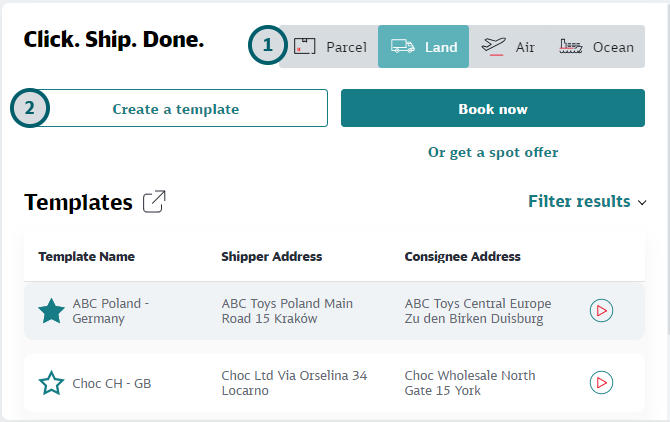
Select Transport Mode
In the Booking widget (shown above) click on the transport mode for which you want to create a template.
-
Click "Create a template"
Note that this button is only available for those transport modes for which you are a contractual customer of DB Schenker. For other transport modes you cannot create templates.
-
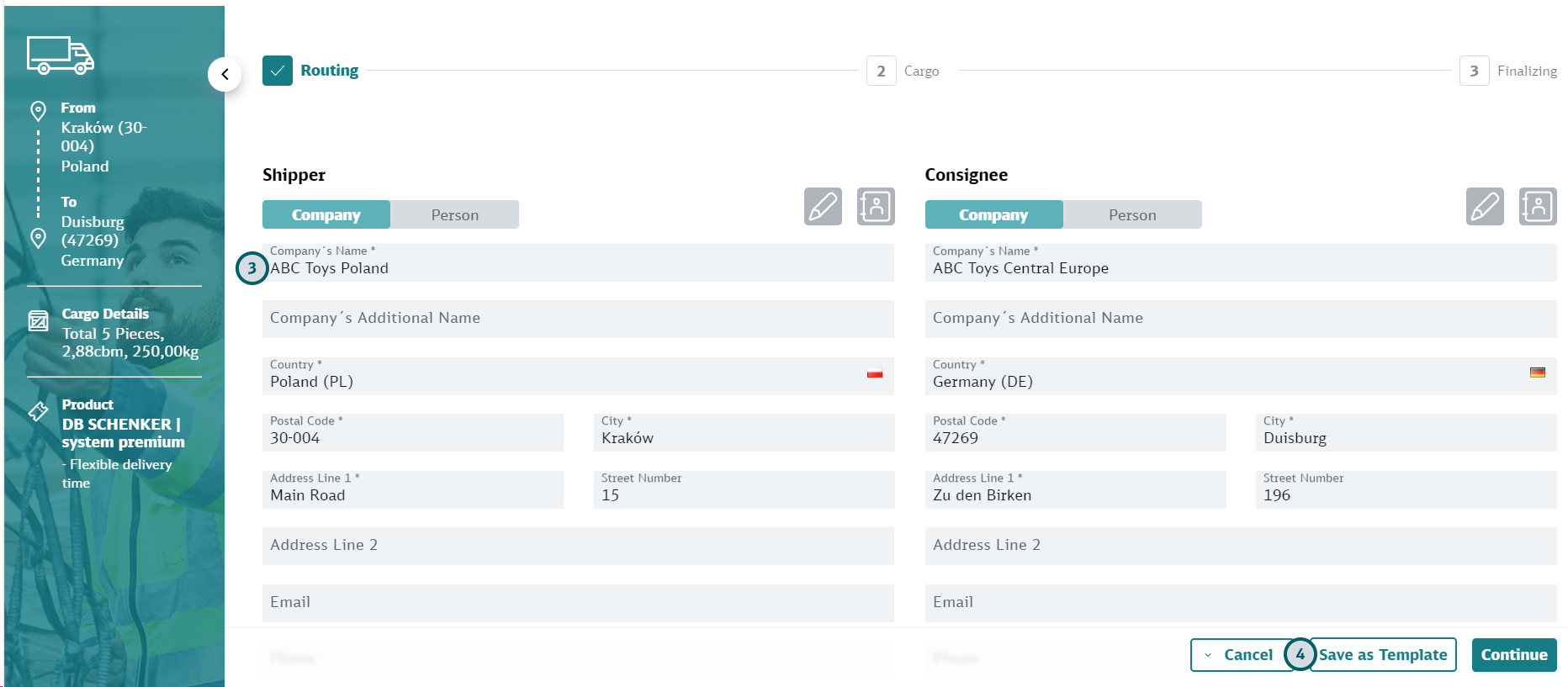
Complete Template Details
The Booking Template looks like a regular booking. The only difference is that none of the fields are mandatory for a template. Refer to Create Contractual Land Bookings or Create Contractual Ocean or Air Bookings for details on the booking steps and the fields that are available. Make sure to only enter fields in the template that will remain the same for future bookings.
-
Click “Save as Template”
-
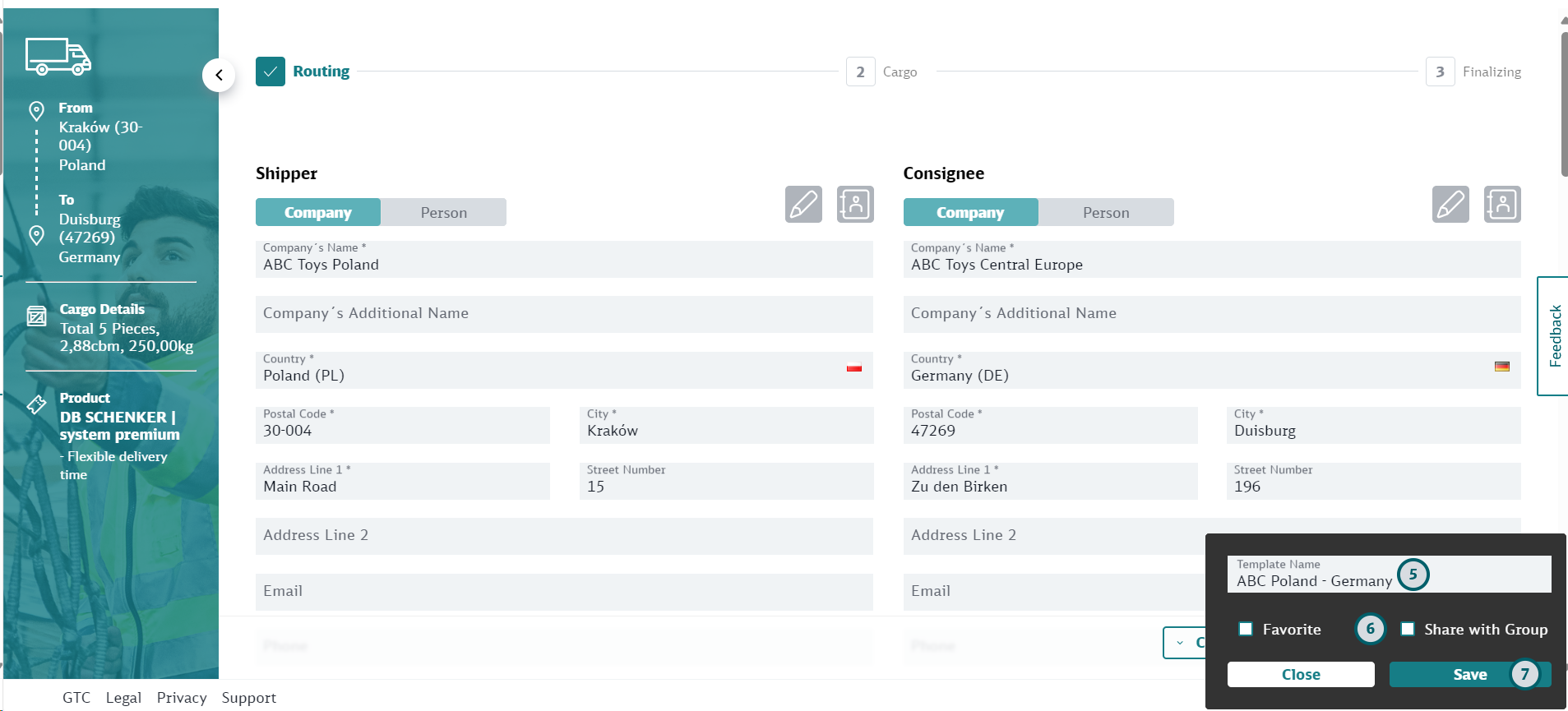
Enter a name for your template
-
Select additional options
You can choose to share the template with other users of your user group, and / or you can mark the template a favorite.
-
Click Save
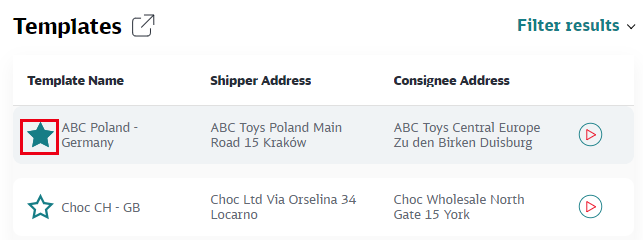
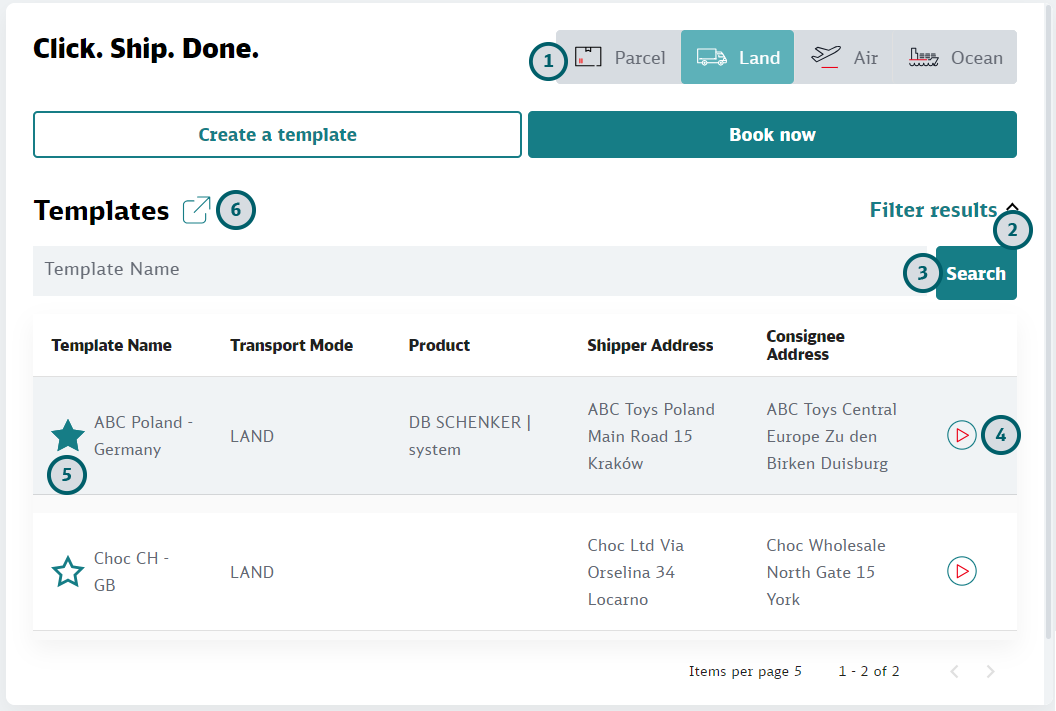
The new template will now be available in the booking widget. Scroll down to see all available templates. A template that has been marked as "favorite" will be shown at the top of the list of templates with a teal-filled star (see screen shot below).
Use your Template
0.0 Use your Template
-
Select transport mode
Select the transport mode of the template you want to use. Only templates belonging to the selected transport mode will be shown below.
-
Open search bar
If you cannot see the template you want to use, you can search for it.
Click on "Filter results" to open the search bar. -
Search for a template
Enter the name or part of the name of the template into the search bar and click "Search".
-
Start a new booking based on the template
Click on the
 icon to start a new booking. The values of the selected template will be available in the new booking.
 -
Mark / unmark the template as "favorite"
You can also mark / unmark a template as "favorite" by clicking on the star in front of the template name. -
If you need to edit, delete, or share the template open the Templates page
Click on the
 icon to open the Templates page in full screen. You can now select a template on that page and then use the "Edit Template" icon
  to edit a template, or the "Delete Template" icon
  to delete a template. Here you can also share your template with other users of your user group.