Using Layouts
On many pages you can adjust layouts according to your needs. These instructions apply to pages where you can see the gear  icon at the top right of the screen and some pages where you can see this menu:
  .
.
Create Layout
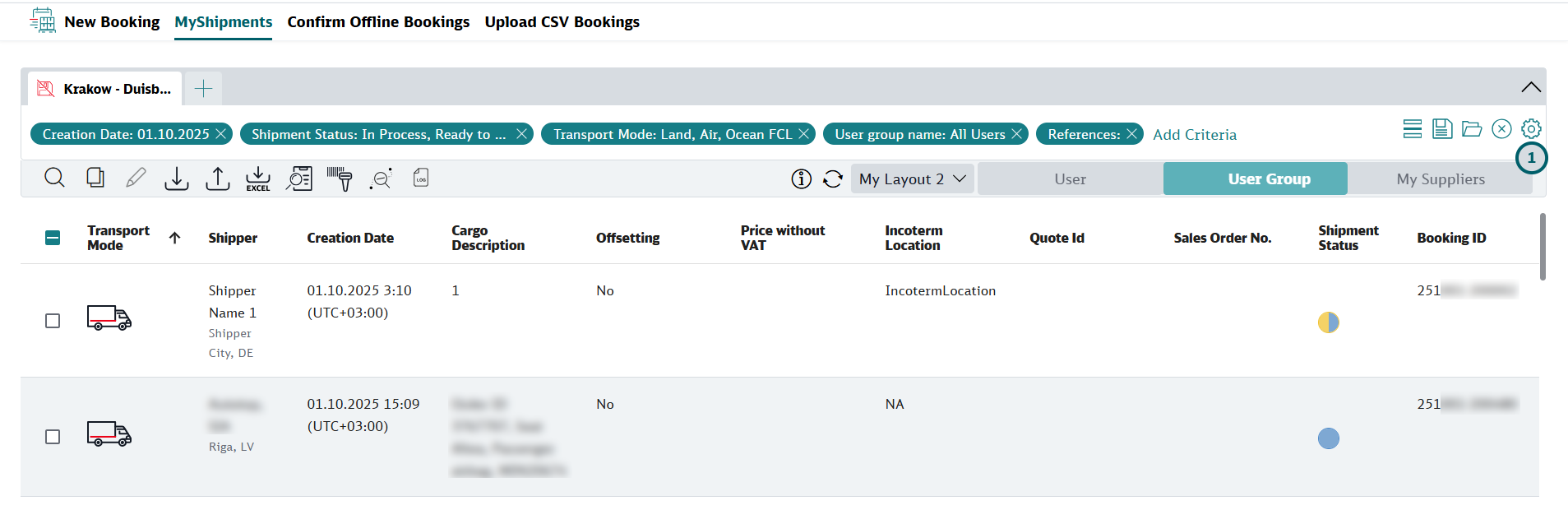
-
Click the gear
icon or the menu icon
The gear
or the menu icon is always located at the top right of the screens.
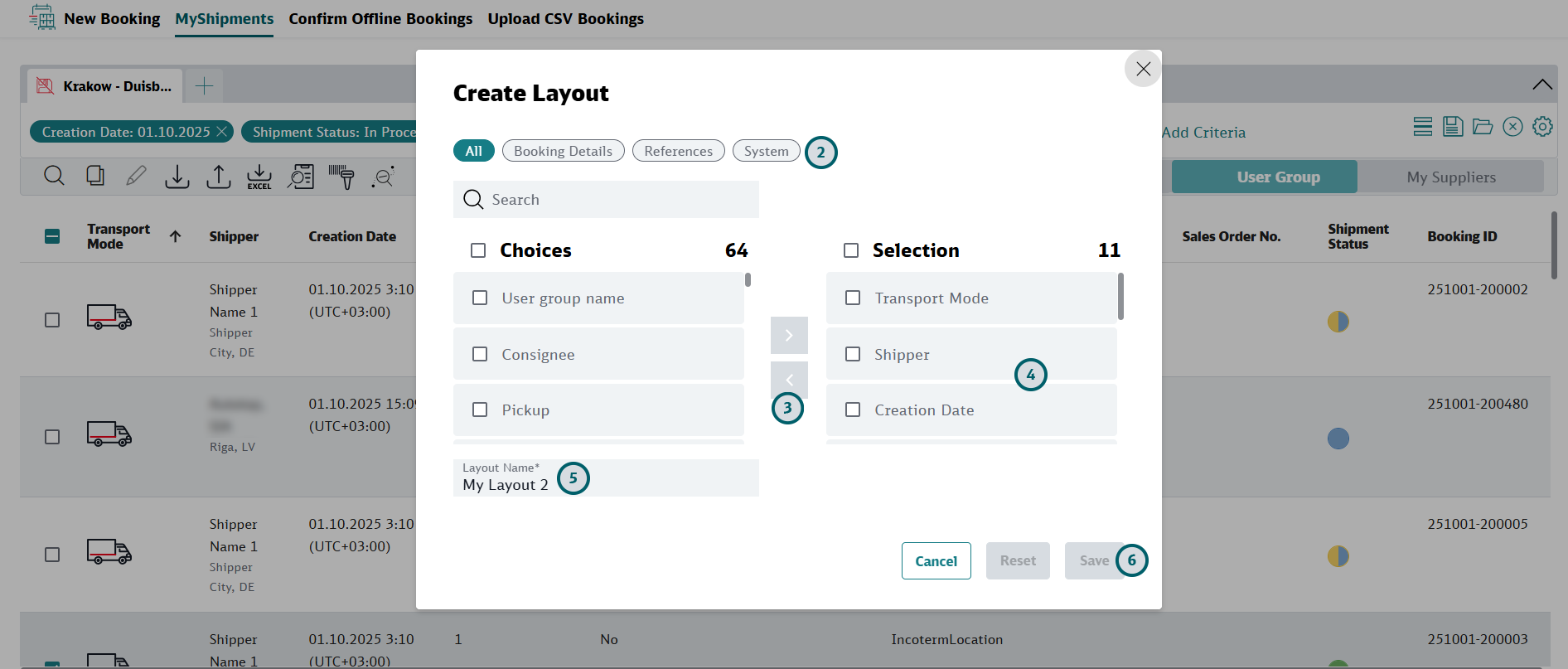
-
If needed, filter or searchfor certain types of fields
For pages that contain a lot of different columns there may be filters available at the top that allow you to filter for fields. Filtering will help you to find those fields you would like to see in your layout.
Use the search field to search for a specific field.
-
Select or deselect columns
Columns in the "Selection" pane will be visible on screen. Columns in the "Choices" pane will be invisible. If you want to make a column visible move it to "Selection", if you want to make it invisible move it to "Choices". You can select the fields and use the arrows for that, or you can drag-and-drop the entries.
-
Change the order of columns in the "Selection" pane
You can drag-and-drop the items in the "Selection" pane to change the order of the columns in your screen. You can also drag-drop-columns directly in the list.
-
If available, enter Layout Name
If the Layout Name field is available, enter a meaningful and unique name.
Some pages allow you to save more than one layout, so that you can define different layouts for different purposes. Each layout can be accessed by its name.
-
Click the "Save" button to save your settings
The page will now open with the newly created layout selected.
Open Layout
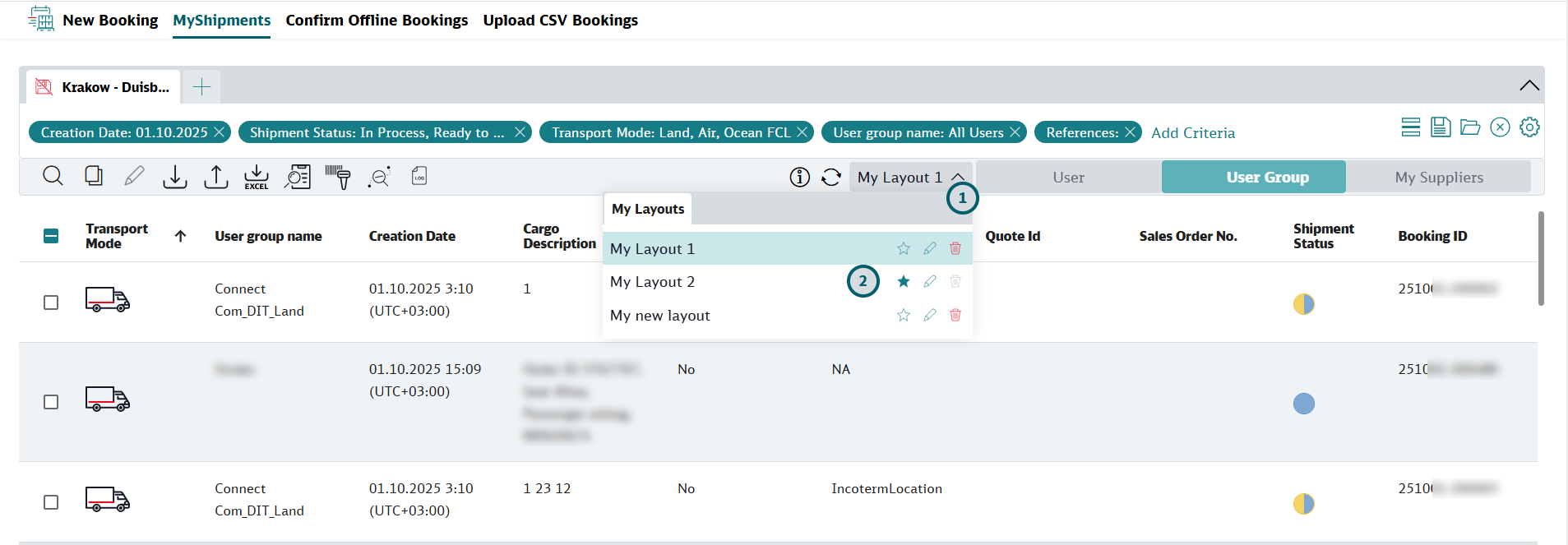
-
Open the layout menu
-
Select the layout you want to see
You can mark you favorite layout by clicking on the star. This layout will be opened by default in future.
Edit or Delete Layout
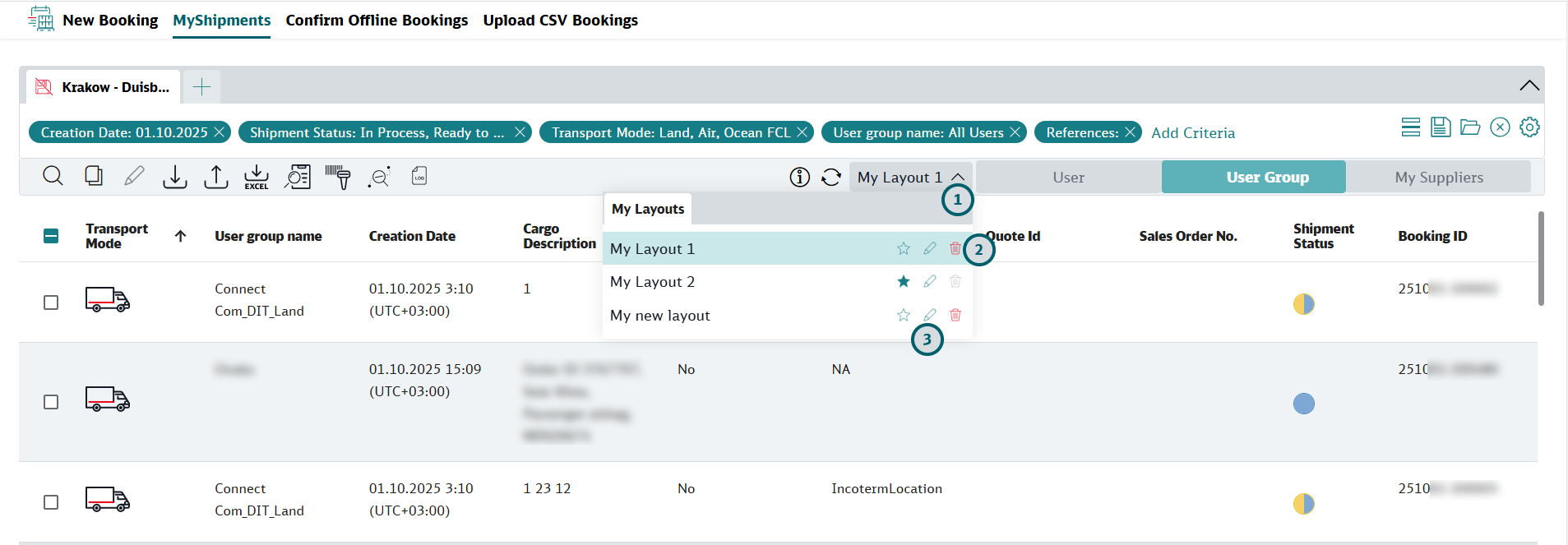
-
Open the layout menu
-
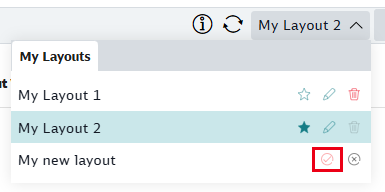
If you want to delete a menu, click on the bin icon
Note that you can only delete layouts that are not marked as your favorite layout.
Confirm your decision by clicking the red tick(shown below).
-
If you want to edit a menu, click the pen icon
Editing a layout works the same way as creating a layout. Follow instructions in section Create Layout.
Changing the order of columns without accessing "Edit Layout"
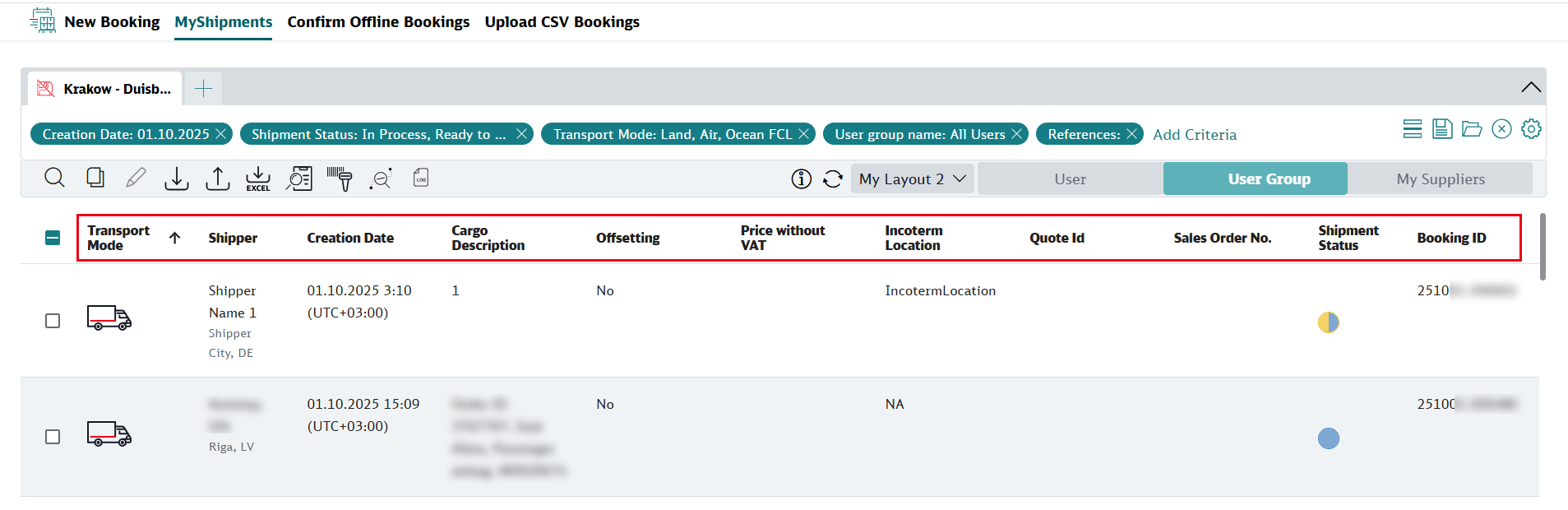
You can also use drag-and-drop to change the order of columns directly on screen instead of opening the layout for editing as described in Edit or Delete Layout .
Click on a column heading and drag the column to the position where you would like it to see.